 P4A Documentation
Transferring ownership
Hand something you own in P4A to another user. The recipient must accept before ownership moves, and either side can back out first.
Overview
Some things in P4A have an owner — a single user who is the reference point for who maintains them. When maintainership changes (someone leaves a team, or a resource is handed to a different maintainer), you can transfer ownership to another P4A user instead of leaving it stuck with the original owner.
Every transfer follows the same two-step, opt-in handshake, regardless of what's being transferred:
- You offer the resource to another registered P4A user, found by name or
@username. - They accept — and only then does ownership actually move. Nothing changes while an offer is pending, and an offer expires automatically after 24 hours.
This page describes that shared flow once, then notes which resource types support it today.
What you can transfer
| Resource | Supported | What ownership controls |
|---|---|---|
| Policy | ✅ | The owner (and admins) can edit the policy's documentation links and is the maintainer of record. |
| Idea | ✅ | The owner (and admins) can edit and resubmit the idea, recall it to draft, and is the submitter of record. |
| Ruleset | ✅ | The owner (and admins) can edit the ruleset's details and its submission, and is the maintainer of record. |
Policies, ideas and rulesets all support the same ownership transfer flow. A policy can be transferred once it's published; an idea can be transferred in any state its owner holds — including while it's still a private draft or under review.
A ruleset can be transferred only while it's approved. If an admin moves it back to review before the recipient accepts, the accept fails and the offer stays open until it expires or is cancelled. The recipient also can't already own another ruleset with the same Exchange asset ID, because each owner's asset IDs must be unique. P4A checks this when you send the offer and again when the recipient accepts.
The handshake below is intentionally generic so future resource types can adopt it without a different mental model.
The transfer flow
1. Offer it
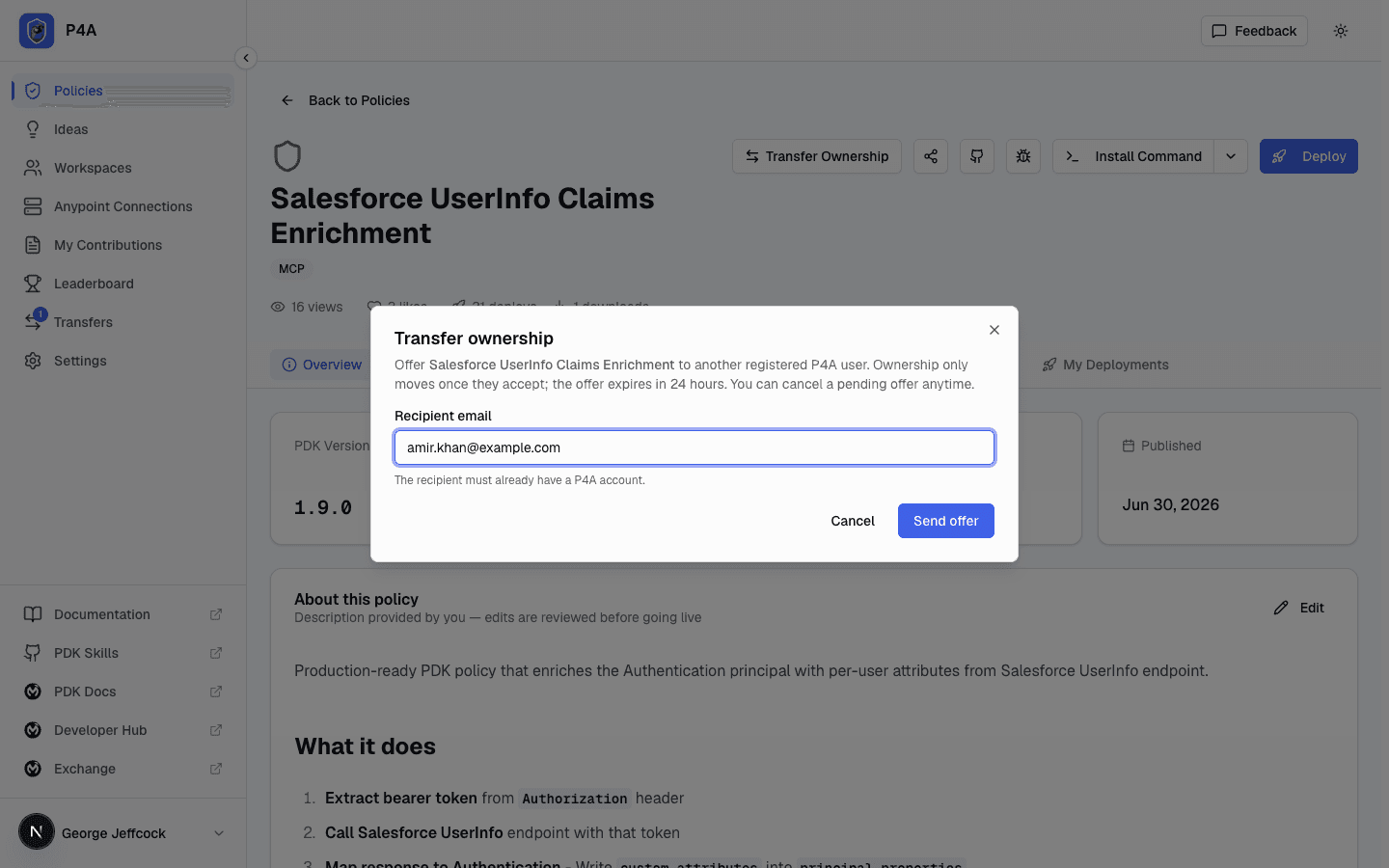
Open the resource you own and start a transfer. For a policy, open the policy and click Transfer Ownership in the action bar at the top of the page. For an idea or an approved ruleset, open it and click the same Transfer action.

Start typing the recipient's name or @username, pick them from the suggestions, and send the offer. Only registered P4A users appear in the list — transfers can't go to someone who hasn't signed up yet. Once sent:
- The resource shows a Transfer pending badge, visible to you and to admins.
- The recipient gets an email and an incoming offer on their Transfers page.
- You can only have one pending offer per resource at a time.
2. Accept or decline
The recipient reviews offers at /dashboard/transfers. Incoming offers appear under Incoming, with who made the offer, when it was offered, and how long until it expires. The Transfers item in the sidebar shows a count badge while offers are waiting.
- Accept — ownership moves to the recipient immediately, and owner-only access (such as editing a policy's documentation links) moves with it. The original owner is notified.
- Decline — ownership stays where it is. The recipient can add an optional note explaining why, which is sent back to the offering user.
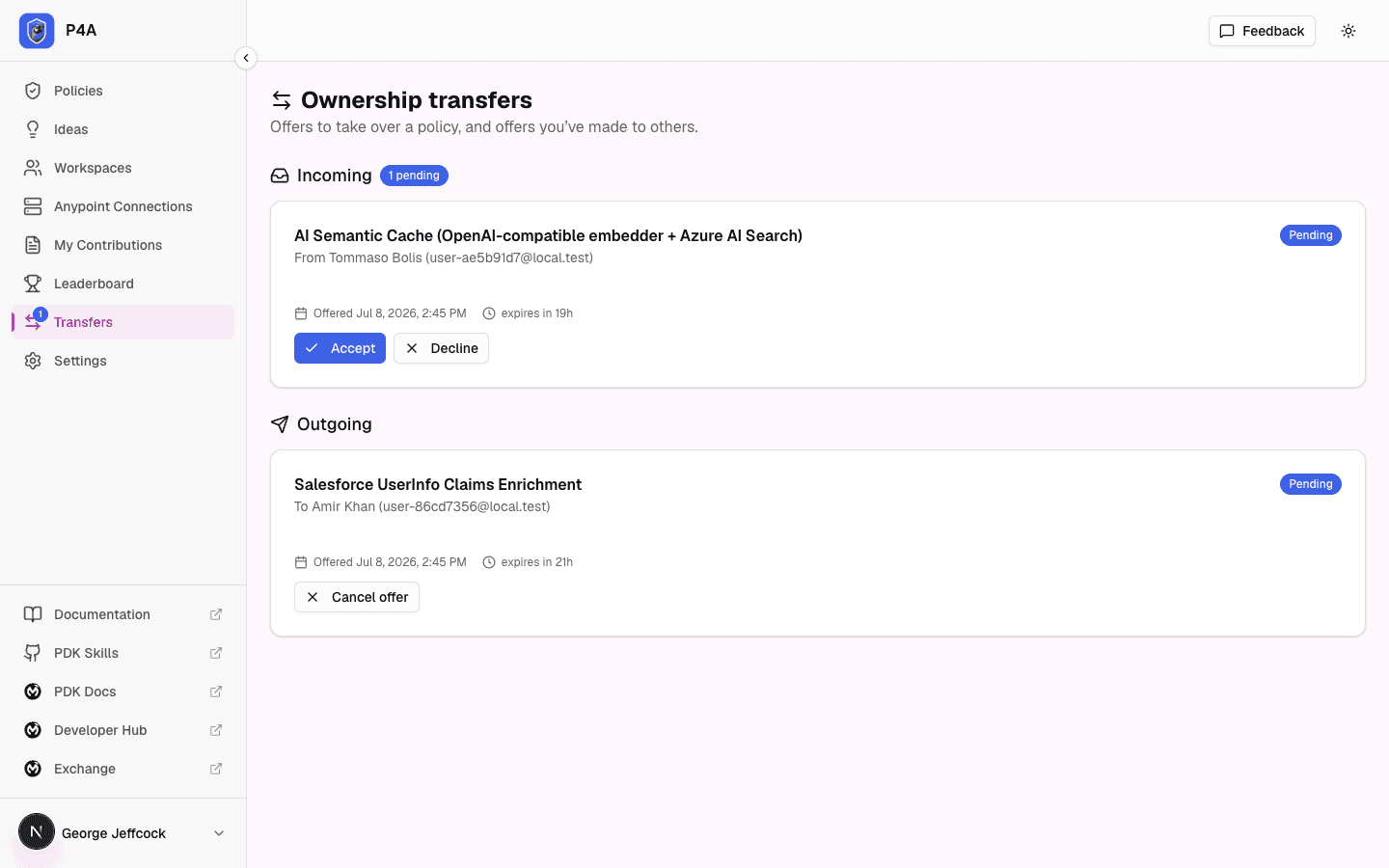
The email never accepts on your behalf — it only links you to this page, where you make the decision while signed in.
3. Cancel an offer you made
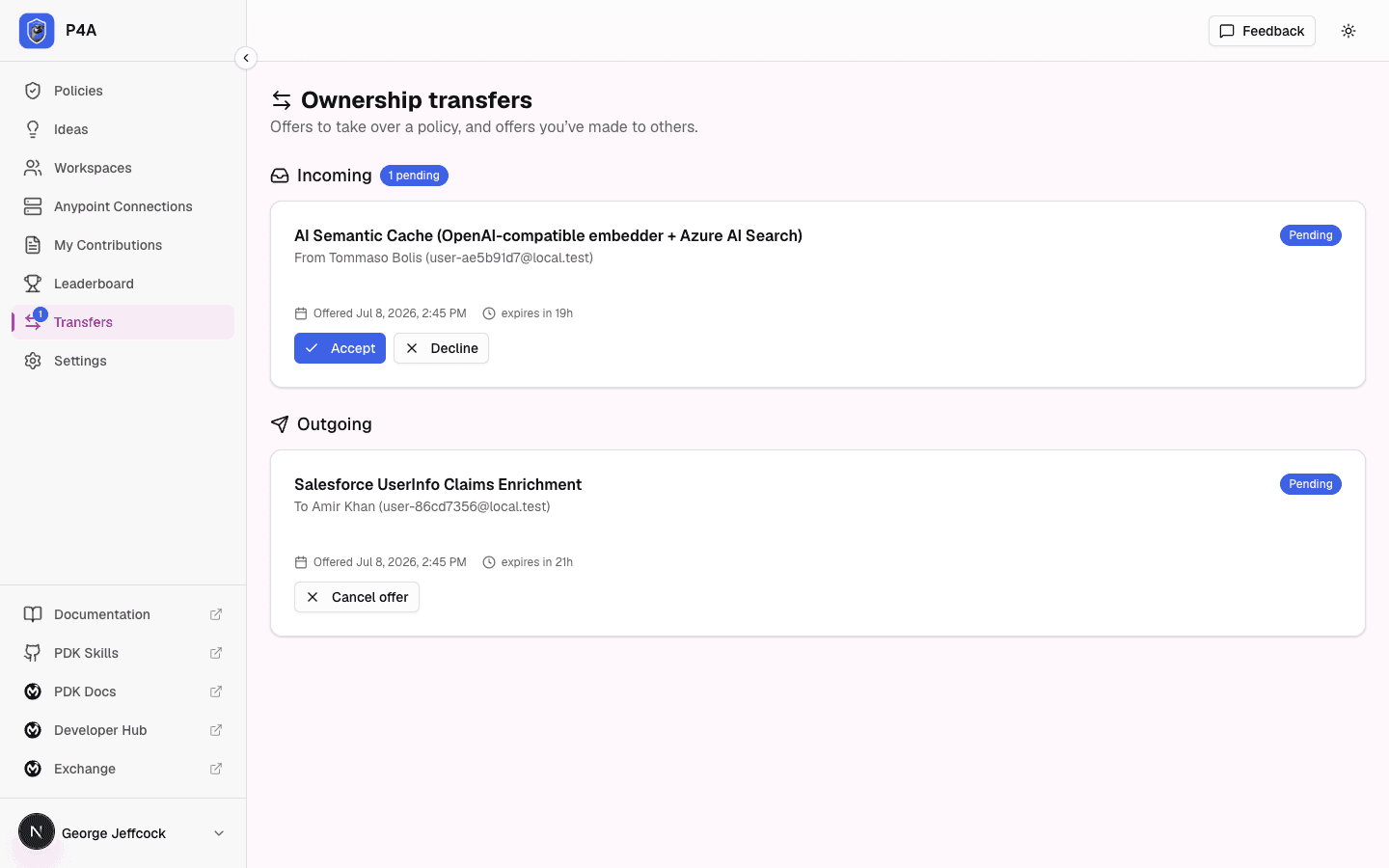
Offers you've sent appear under Outgoing on the same page. While an offer is still pending you can Cancel offer to withdraw it — useful if you picked the wrong recipient or changed your mind. Once the recipient has accepted or declined, the outcome is final and shows in the list.
When offers expire
A pending offer expires 24 hours after it's made. An expired offer can't be accepted — the recipient would need a fresh one. Expired and resolved offers stay listed for reference, with the date and time of each decision, so there's always a record of what happened.
References
- Getting started — the dashboard tour, including the Transfers page and email-notification preferences.
- Lifecycle states — what a policy owner can do at each stage of a policy's life.