 P4A Documentation
Using workspaces
Workspaces group members, Anypoint connections, and deployments. This page explains the model, the roles, and what each role can do.
Overview
A workspace is the unit in P4A that owns Anypoint connections and deployments and groups members for sharing. Every account has one personal workspace by default, created automatically the first time you sign in. You can also create or be invited into shared workspaces — teams where multiple users collaborate on the same set of connections and deployments.
Each workspace membership has a role — Owner, Admin, or Member — that determines what you can do inside that workspace.
Personal vs shared workspaces
| Personal | Shared | |
|---|---|---|
| Created | Automatically on first sign-in | Manually, from the Workspaces page |
| Members | Always exactly one (you, as Owner) | One Owner plus any number of Admins / Members |
| Can be renamed | No | Yes (Owner only) |
| Can be shared | No | Yes |
| Owns connections you create | Yes | Only when an Owner / Admin explicitly links a connection into it |
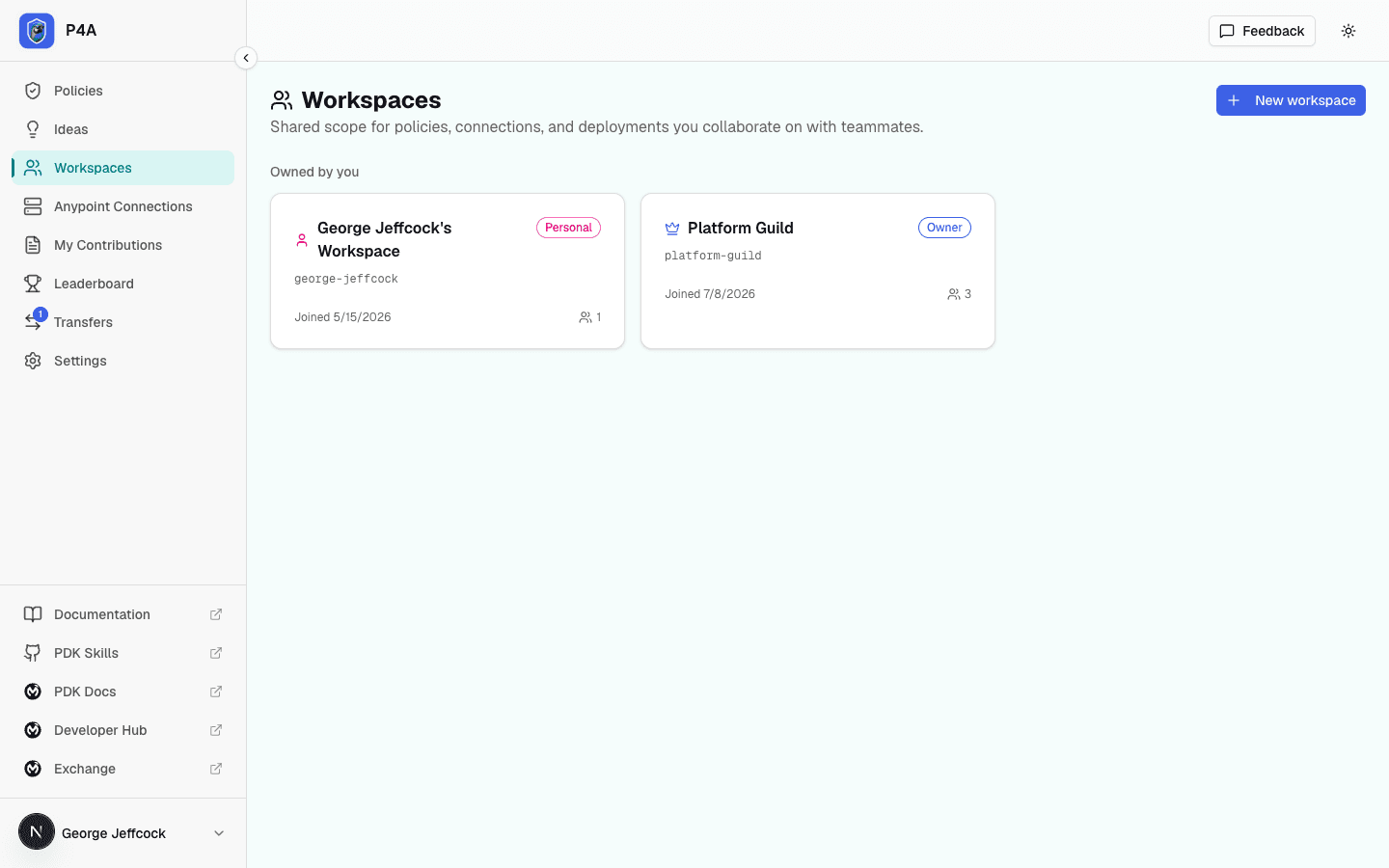
You can find your workspaces at /dashboard/workspaces. The list shows your personal workspace first (marked with a person icon), followed by any shared workspaces, with a badge for your role in each.
Creating a shared workspace
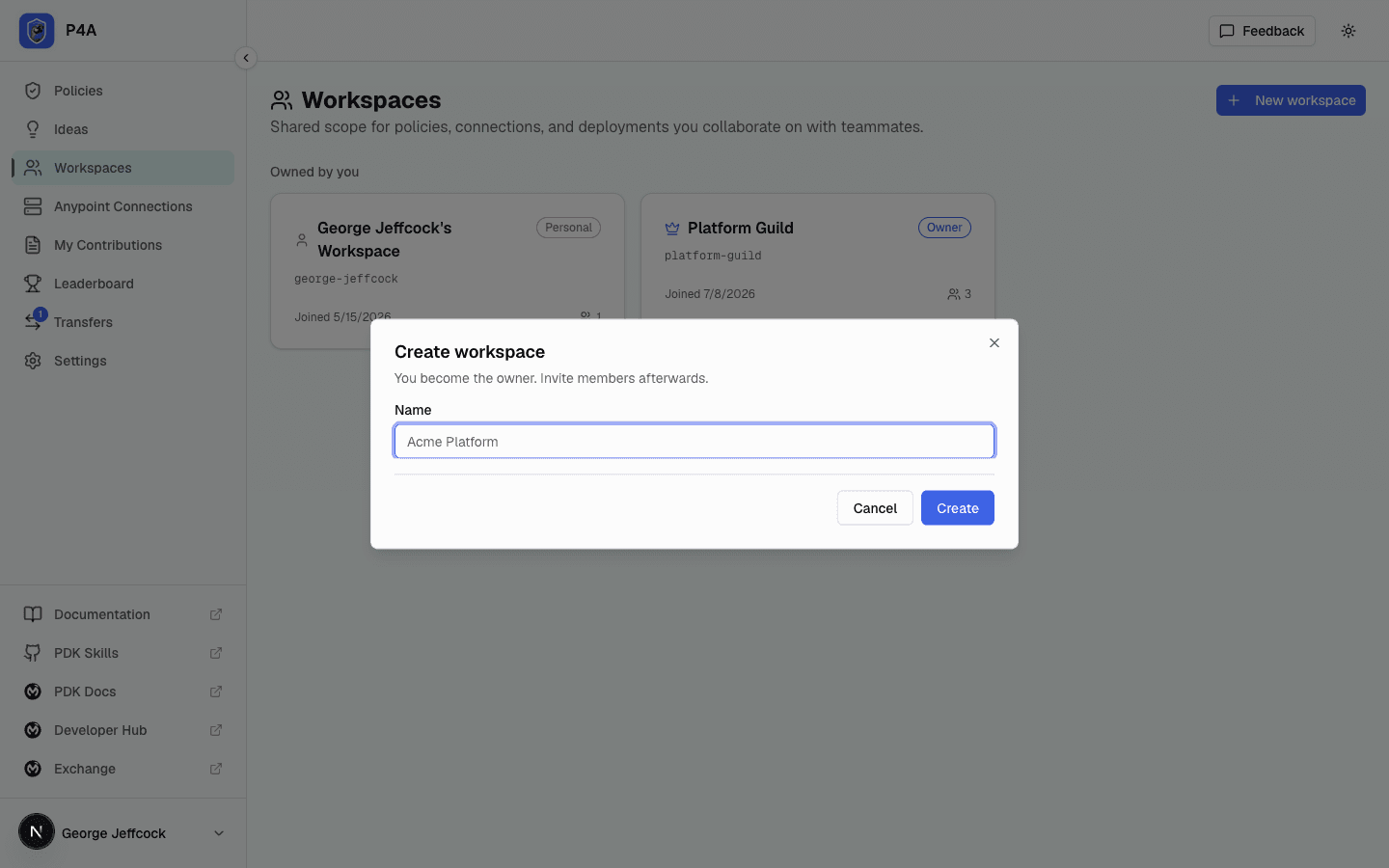
From Workspaces, click New workspace, give it a name, and confirm. The workspace is created with you as the Owner. You can then invite teammates from the workspace's detail page.
Workspace detail page
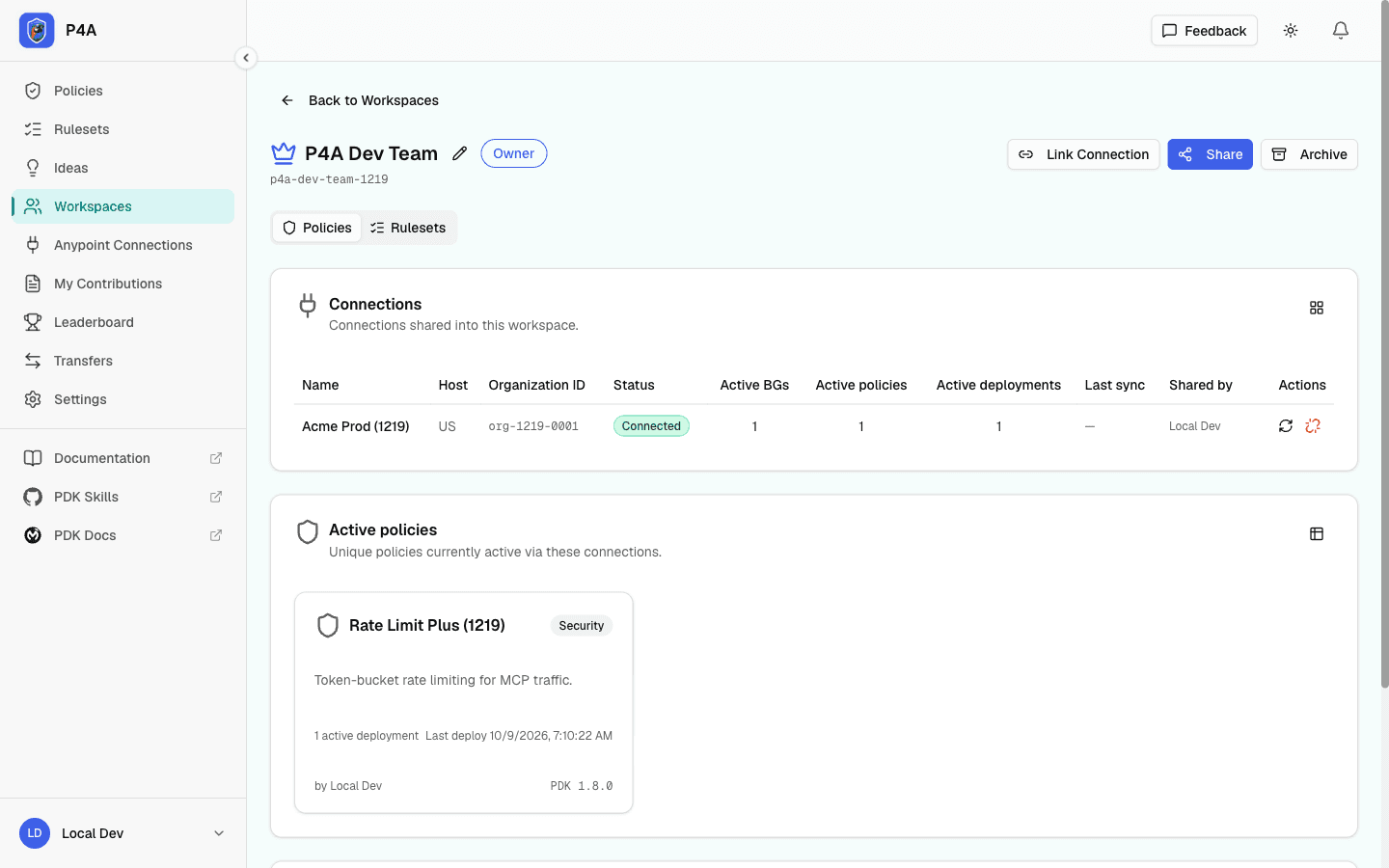
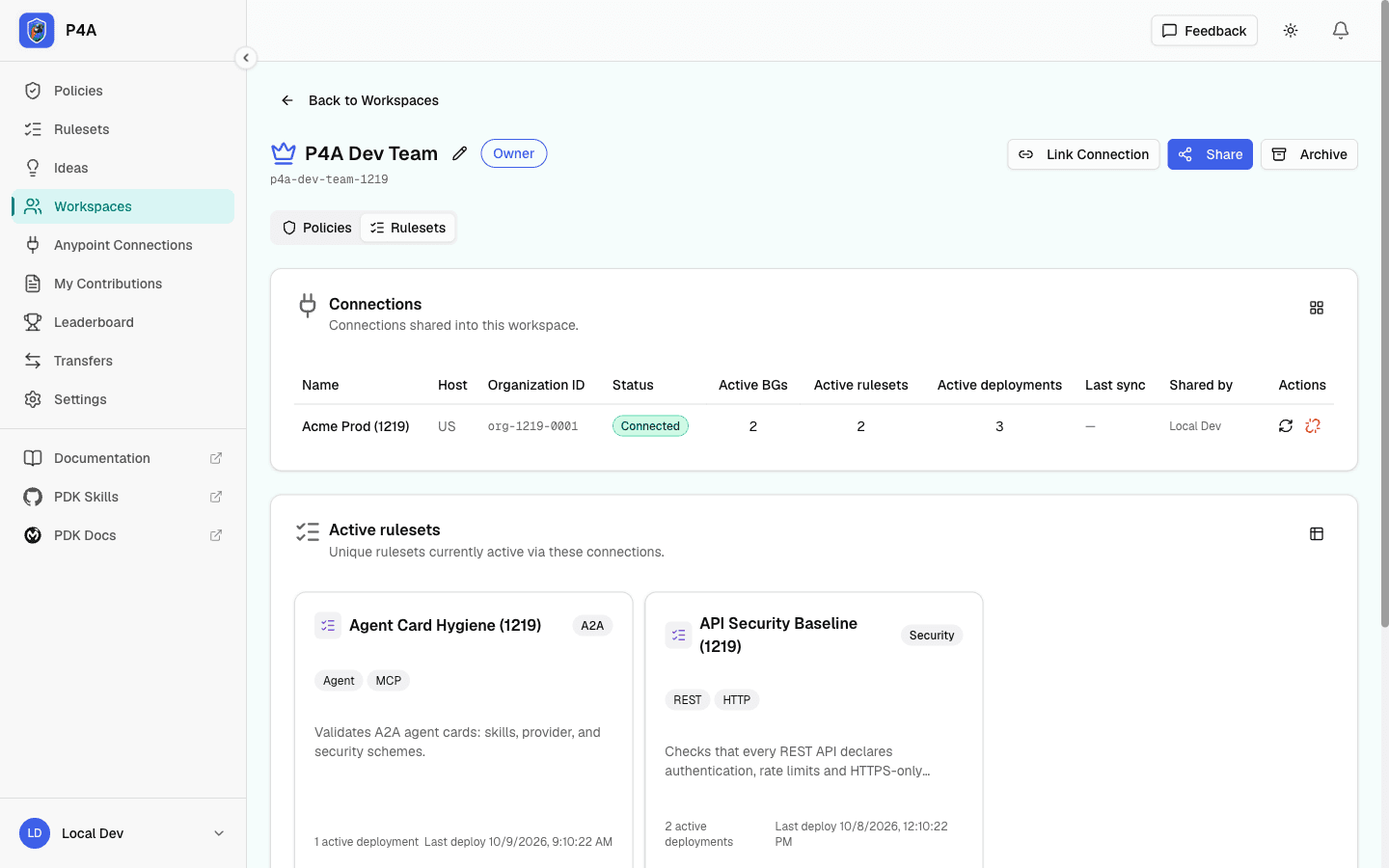
Each workspace's detail page exposes the Link Connection and Share actions to Owners and Admins. Below the header, a Policies | Rulesets switch picks which kind of asset the page summarises. Policies is selected when the page opens. The selected tab is kept in the page address (?tab=rulesets for Rulesets), so a reload, a shared link, or Back to Workspace from a connection or ruleset opened on the Rulesets tab brings you back to the same tab.
On the Policies tab:
- Connections — every Anypoint connection shared into the workspace. Each row shows the connection's host region and per-connection counters: Active BGs, Active policies, and Active deployments. Owners and Admins can unshare a connection (or sync its reachable BGs) from the row actions; Members can pick from these connections at deploy time.
- Active policies — the unique set of policies that currently have at least one active deployment running through the workspace's connections. The same policy deployed to multiple business groups counts once. Click a row to open the policy and see every active deployment (and its target BG) attributed to this workspace.
The Rulesets tab has the same two cards for rulesets you've published to Exchange through the workspace's connections:
- Connections — the same connections, with the counters computed from ruleset deployments: Active BGs, Active rulesets, and Active deployments. Opening a connection from this tab lists its deployed rulesets instead of its deployed policies (see Connection detail page).
- Active rulesets — the unique set of rulesets with at least one active deployment through the workspace's connections, with each ruleset's category and API types. Click one to open it from the workspace (see Opening a ruleset from a workspace).
Below the tabs, the Members card appears only on shared workspaces. It lists each member's role (Owner / Admin / Member) and what they have actively contributed here: Active deployments of policies they've submitted that are still live. Owners and Admins can open the Share dialog from the card header to invite, change roles, or remove members.
The numbers in every counter are gated on the live runtime — a deployment that was rolled back or that failed to publish is not counted. See the Glossary for the precise definitions of active deployment, active policy, active ruleset, and active business group.
Inviting members
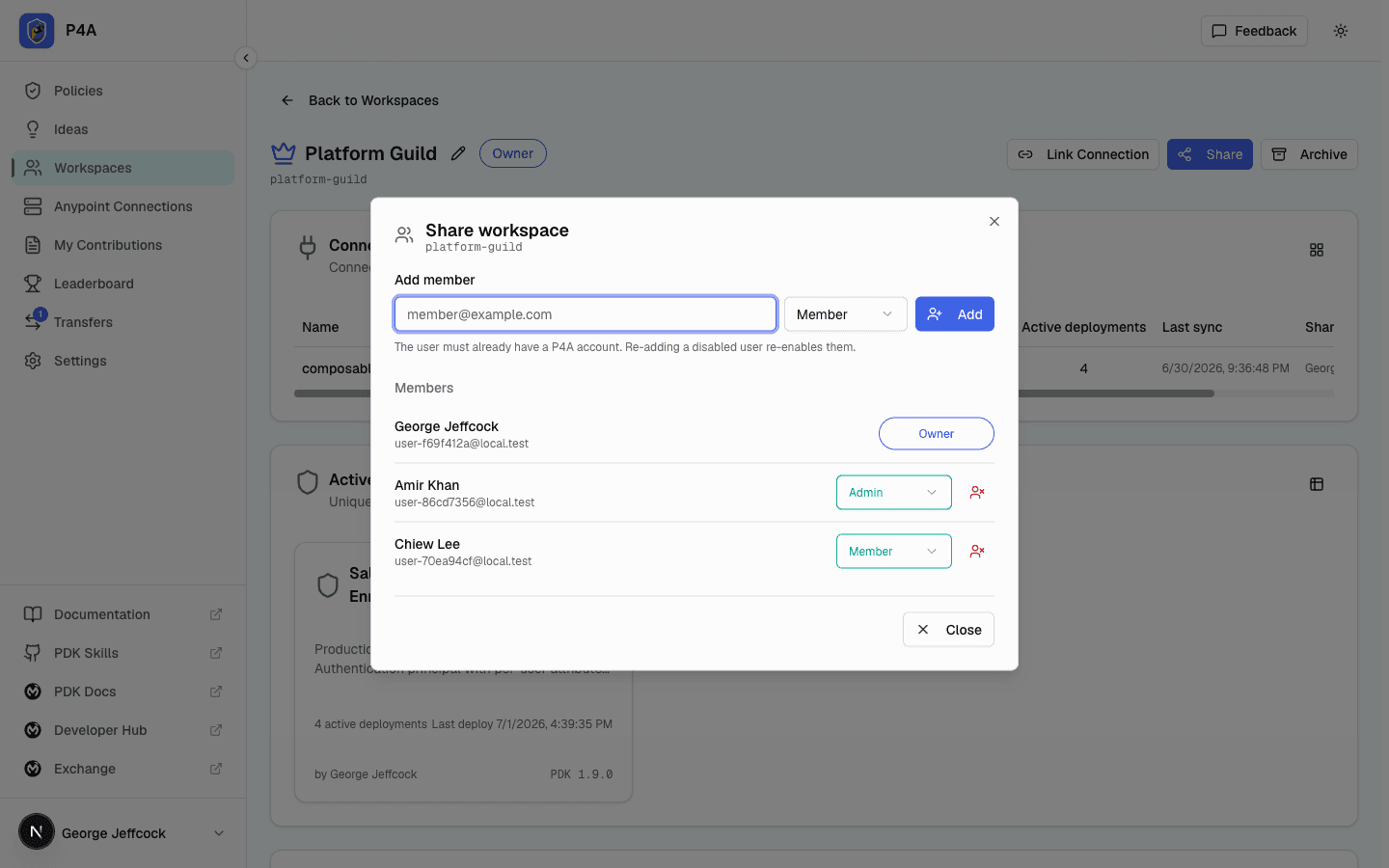
From the workspace detail page, click Share to open the members dialog. Start typing a teammate's name or @username, pick them from the suggestions, and choose the role you want them to have (Member or Admin). Only registered P4A users appear in the list — invites don't create new users.
You can change a member's role later (Member ↔ Admin) or remove them, again from the Share dialog. The Owner role can't be reassigned through this dialog; ownership is tied to the workspace creator.
Connections and deployments
Anypoint Connected App credentials in P4A are connections. Connections are owned by an individual user, but they can be linked into a shared workspace so that the workspace's members can use them to deploy.
-
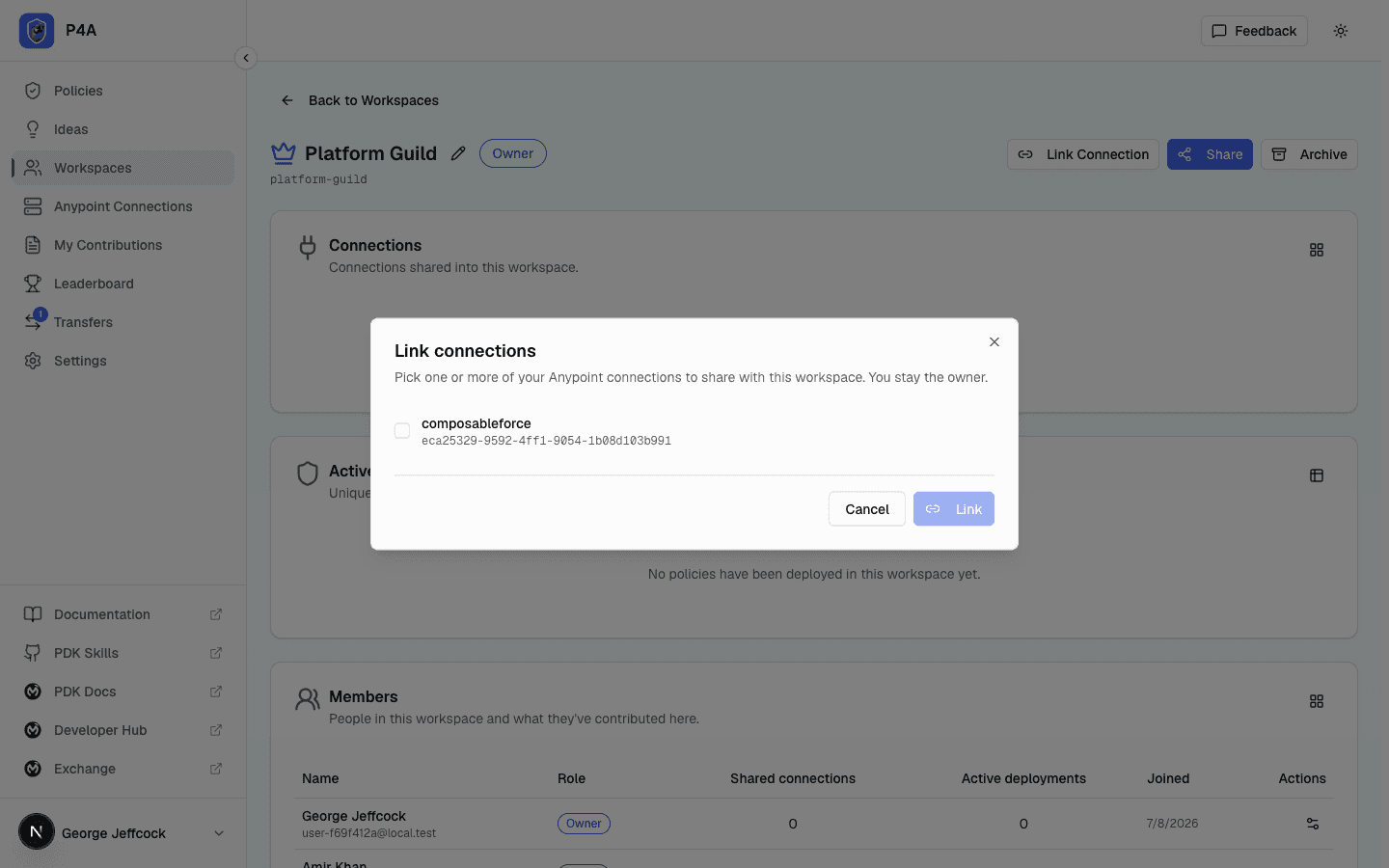
An Owner or Admin of a shared workspace can link an existing connection into the workspace from the workspace's detail page. The Link Connection dialog lists every connection the linker owns; pick one and confirm to share it with the workspace.
-
Once linked, Members of the workspace can see the connection and use it to deploy approved policies — they don't need to know the client secret.
-
The plaintext client secret is never exposed in the UI to anyone, including the connection's own creator (it lives encrypted in the vault — see Deploying a policy).
-
Unlinking a connection from a workspace is a soft-disable: the link is preserved (so historical attribution survives) and any Owner / Admin / connection owner can re-link it later. See Disabling members and connections below.
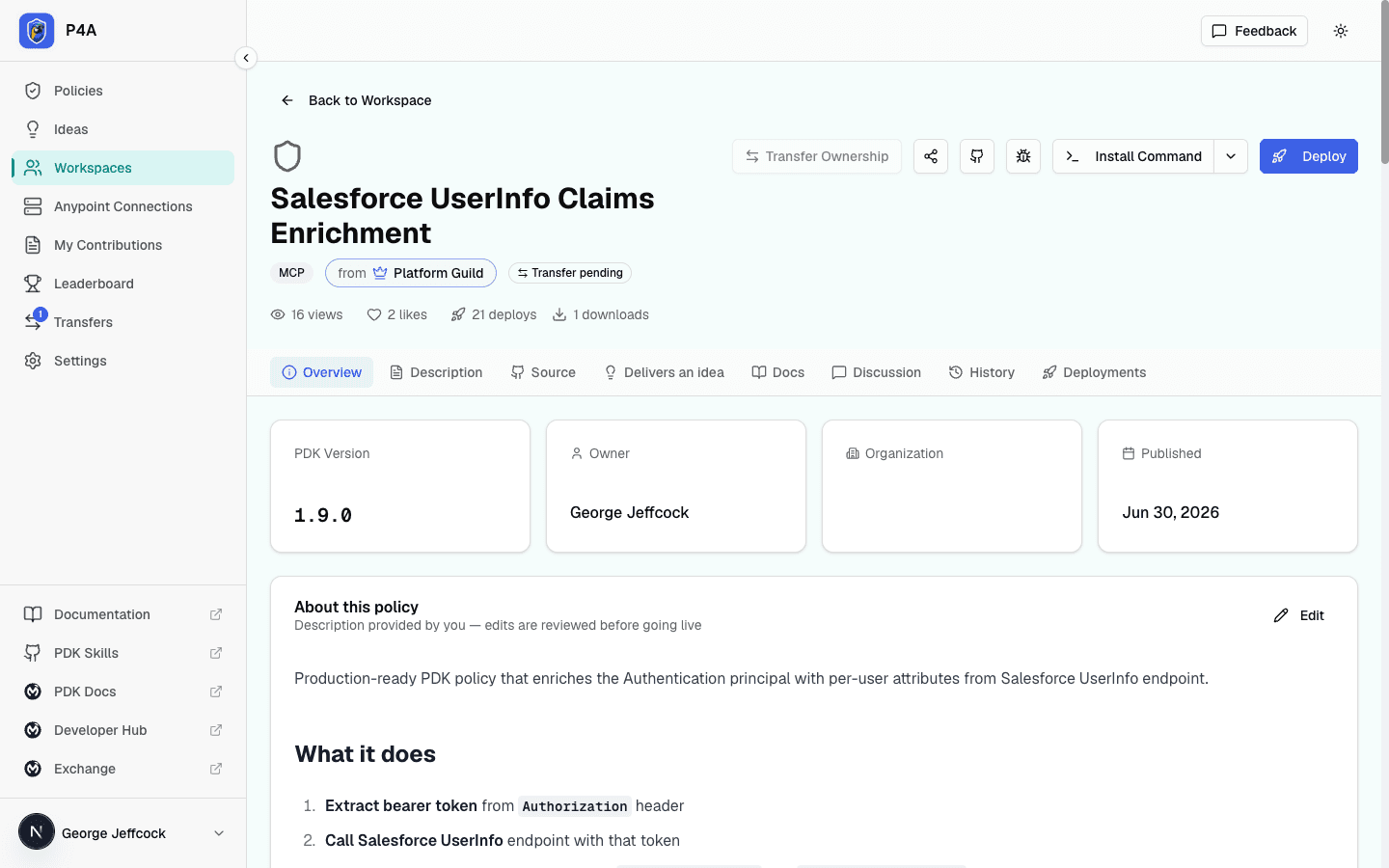
When a member opens a policy from inside a shared workspace (via /dashboard/workspaces/<id>/policies/<policy-id>), the policy page shows a Current Workspace Deployments panel at the top. It lists every deployment of that policy that runs through the workspace's linked connections — across all members, not just the one viewing the page — so the team has a single shared view of what's currently live and what failed.
For the end-to-end deploy flow itself, see Deploying a policy.
Opening a ruleset from a workspace
Clicking a ruleset on the Rulesets tab opens it at /dashboard/workspaces/<id>/rulesets/<ruleset-id>. The page is the usual ruleset page, with a from <workspace> badge next to the name and Back to Workspace in place of the catalog back link. Both return to the workspace's Rulesets tab. Its deployments are split in two:
- Current Workspace Deployments — every publish of that ruleset through the workspace's connections, across all members.
- Other Active Deployments — live publishes through the same connections that were submitted from a different workspace. Hidden when there are none.
The page only opens from a workspace where the ruleset is active. If it isn't (for example, its only publish failed or was removed), you land on the ruleset's regular catalog page instead. To publish a ruleset, see Publishing a ruleset.
Permissions
The matrix below summarises what each role can see and do in a shared (non-personal) workspace. Personal workspaces only ever have one member (the Owner) and don't expose any of the multi-member controls.
| Action | Owner | Admin | Member |
|---|---|---|---|
| View workspace and its members | ✅ | ✅ | ✅ |
| View connections linked into the workspace | ✅ | ✅ | ✅ |
| Deploy approved policies via a linked connection | ✅ | ✅ | ✅ |
| Rename the workspace | ✅ | — | — |
| Invite new members | ✅ | ✅ | — |
| Change a member's role (Member ↔ Admin) | ✅ | ✅ | — |
| Remove a member | ✅ | ✅¹ | — |
| Link an Anypoint connection into the workspace | ✅ | ✅ | — |
| Unlink any connection from the workspace | ✅ | ✅ | — |
| Unlink a connection you yourself own | ✅ | ✅ | ✅ |
| Transfer or reassign Ownership | — | — | — |
¹ Admins can remove Members and other Admins, but not the Owner.
Ownership transfer is not currently supported — the Owner is whoever created the workspace.
Disabling members and connections
Both member removal and connection unlinking in P4A are soft-disables, not hard deletes. The row is preserved so historical attribution — who deployed what, who linked which connection — never silently disappears, and every disable is reversible.
What "disabled" means
- For a member: the membership row stays in
workspace_memberswith adisabled_attimestamp. The user immediately loses access to the workspace, its connections, and any workspace-scoped URLs (/dashboard/workspaces/<id>/...). Their existing deployments are not deleted; they just stop appearing in the workspace's view. - For a linked connection: the link row stays in
workspace_connectionswith adisabled_attimestamp. Workspace members lose visibility on the connection and on every active deployment running through it. The connection itself, and the deployments rows, are untouched — re-linking restores the same view.
Owners cannot be disabled. The workspace creator stays the Owner for the lifetime of the workspace.
Disabling and re-enabling a member
From the workspace detail page, click Share to open the members dialog, then click the Disable icon next to a member. A confirmation dialog shows what they currently have here (active deployments, owned linked connections) before you commit. The dialog shows the count of connections the member owns that are currently linked into this workspace, and clarifies that the shares themselves stay in place; disabling affects the member's access, not their owned shares. The backend does cascade-disable those connections automatically (see "Cascade" below).
A disabled member appears in the dialog with a Disabled badge and a Re-enable action next to them. Re-enabling restores access without re-issuing an invite.
Unlinking and re-linking a connection
From the workspace detail page's Connections card, click the Unlink (red) icon on a row. A confirmation dialog shows:
- how many workspace members will lose visibility,
- how many active deployments on this connection will become invisible to the workspace.
Confirm to disable; the row stays in the table with a Disabled badge. Owners, Admins, and the connection owner see a Re-link (green link) icon to restore it. Plain Members no longer see the row at all.
You can also unlink from the connection's own detail page: when you open a connection through a workspace, its Danger zone offers Unlink from workspace (the same reversible soft-disable) instead of the global Delete connection action. Delete — which permanently destroys the connection and every record tied to it — stays reserved for the connection's own page outside any workspace, and for your personal workspace (where a connection can't be unlinked because it belongs to you directly).
Cascade: member disable → owned links
When a member is disabled, every connection that member owns and had linked into the workspace is also soft-disabled, with a separate marker (disabled_reason = member_disabled). This is what stops a removed teammate from continuing to expose their personal credentials to the workspace through a previously-linked connection.
When the same member is later re-enabled, only those cascaded links are restored. Links that an Owner or Admin had manually unlinked while the member was active are left disabled — they were a deliberate action, not a side-effect of the offboarding.
Audit trail
Every transition (disable, re-enable, role change, link, unlink, re-link) writes one row to the audit log. Cascaded link transitions carry a cascade_from marker (workspace_member_disabled or workspace_member_reenabled) so the cause is traceable.