P4A Documentation
Getting started
Sign in to P4A and find your way around the portal.
Overview
P4A — Policies for Agents — is a community-driven catalog of custom policies for the MuleSoft Omni Gateway. The portal lets you:
- Discover policies built by the community: browse the catalog, filter by category, read the source on GitHub, and pick the ones that fit your APIs.
- Submit your own custom PDK policy by pointing P4A at a public GitHub repository — P4A validates the project layout and the PDK version, and a reviewer promotes it through the lifecycle to the published catalog.
- Propose policies as ideas when you want one but haven't built it yet, and vote on what other people have proposed.
- Deploy approved policies into your own Anypoint organisation through a Connected App, in either a DEV (Publish) or stable (Release) mode, without managing any deployment pipelines yourself.
- Collaborate with teammates inside shared workspaces that group members, Anypoint connections, and live deployments under role-based access (Owner / Admin / Member).
This page covers signing in and finding your way around. The other guides in this section walk you through each of those flows in detail.
Sign in to P4A
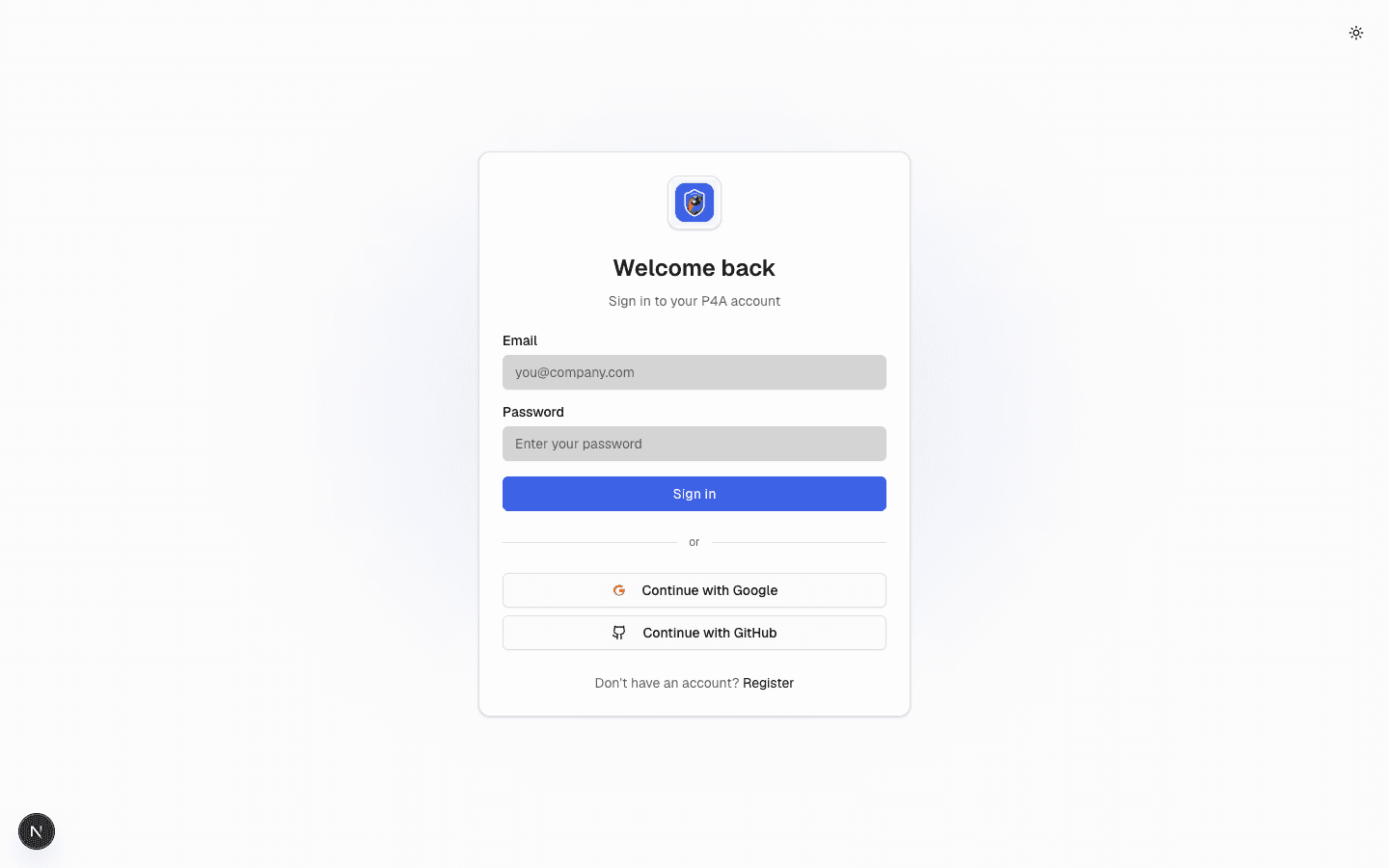
Open the portal sign-in page at /login. P4A supports three sign-in methods — pick whichever you prefer; they all land you in the same account, keyed off your email address.
- Email and password — enter the email and password you registered with. If you don't have an account yet, follow the Register link from the sign-in screen to create one.
- Continue with Google — single sign-on through your Google account. The first time you use it, Google asks for permission to share your email and name with P4A.
- Continue with GitHub — single sign-on through your GitHub account, with the same first-time consent step.
The two OAuth buttons (Google and GitHub) live below the email/password form. Choose any method on any visit — for example, you can register with email/password and later sign in via Google as long as the Google account uses the same email address.
When you sign in with Google or GitHub for the first time, P4A automatically creates a profile for you using the name and email returned by the provider — there's no separate registration step. With email and password, you create the profile yourself by following the Register link before your first sign-in. Either way, you can update your display name and company label later from the Profile modal in the sidebar.
Dashboard tour
Once signed in, the dashboard is your home base. If this is your first time signing in, a guided tour automatically launches — it walks you through the main navigation, the resources group, and each of the key sections listed below. You can follow the step-by-step overlay, dismiss it and explore on your own, or replay it later from Take the tour in the profile menu at the bottom-left. The sections below describe the same areas in detail.
Policies
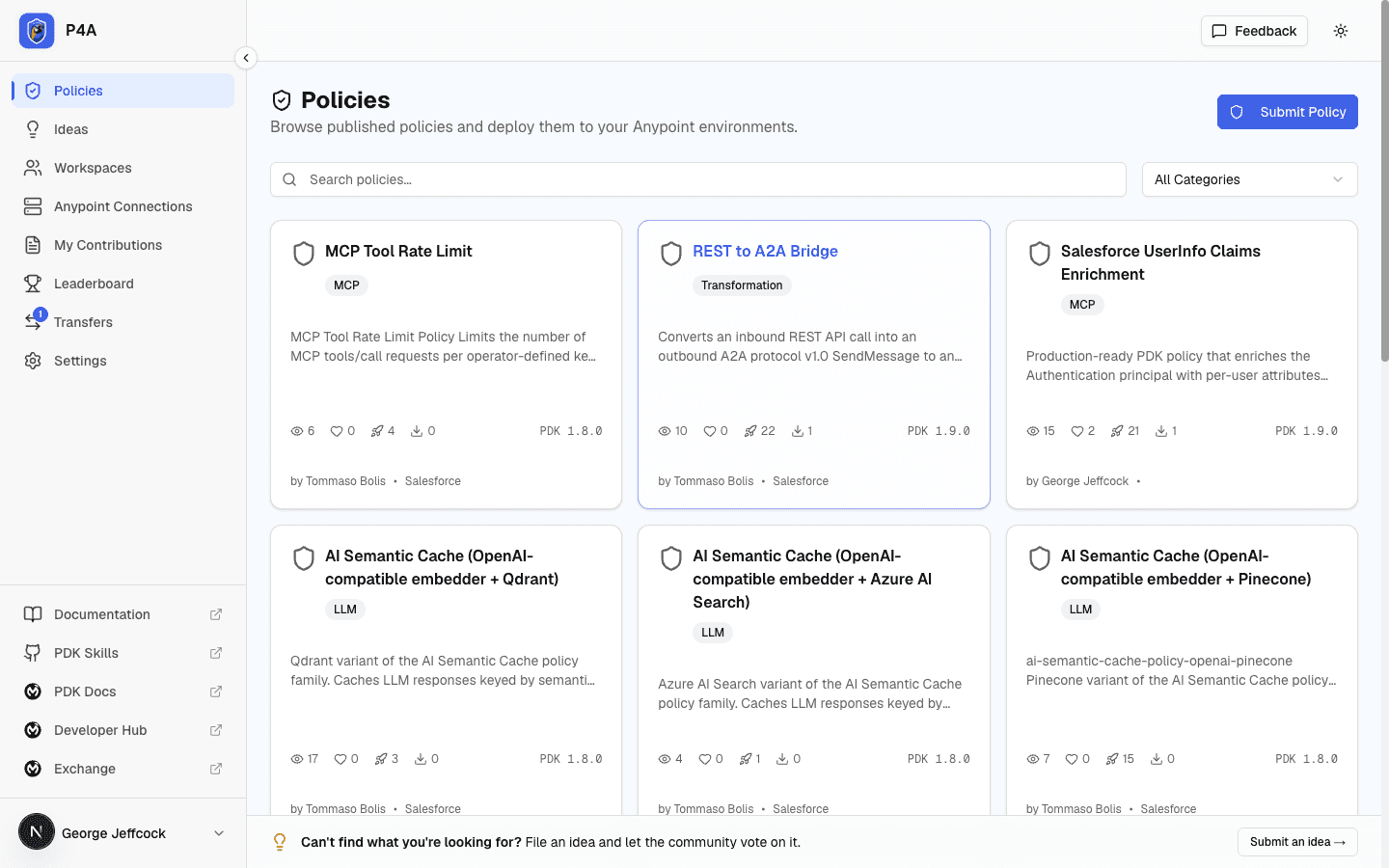
Browse all published policies at Policies (/dashboard/policies). Filter by category, search by name, sort the catalog (alphabetically — the default — or by submission date, newest or oldest first), and view details before deciding to deploy a policy.
The page has two tabs. Community (the default) is the catalog of policies built and submitted by the community — the ones you can deploy into your own Anypoint organisation. MuleSoft is a read-only reference list of the out-of-the-box policies that ship with the MuleSoft Omni Gateway; each one opens an in-portal detail page with its full documentation and a link out to the official docs. Use the MuleSoft tab to check whether MuleSoft already ships a policy for what you need before building or deploying a custom one.
Each published policy's detail page has a Share button that copies a public link — of the form /p/{name} — or posts it to LinkedIn or X. Anyone can open that link to see a read-only preview of the policy, even without signing in; signing in takes them to the full catalog page.
Rulesets
Browse community API Governance rulesets at Rulesets (/dashboard/rulesets). A ruleset is a set of design-time rules that checks your API specs before anything is deployed, unlike a policy, which runs on gateway traffic. Search by name, filter by category or target scope (REST, AsyncAPI, HTTP, gRPC, or agent network), and open a ruleset to see each rule and its severity. Submit your own with Submit a ruleset. To write one with your AI agent, see Authoring a ruleset; to put an approved one into your Anypoint Exchange, see Publishing a ruleset.
Ideas
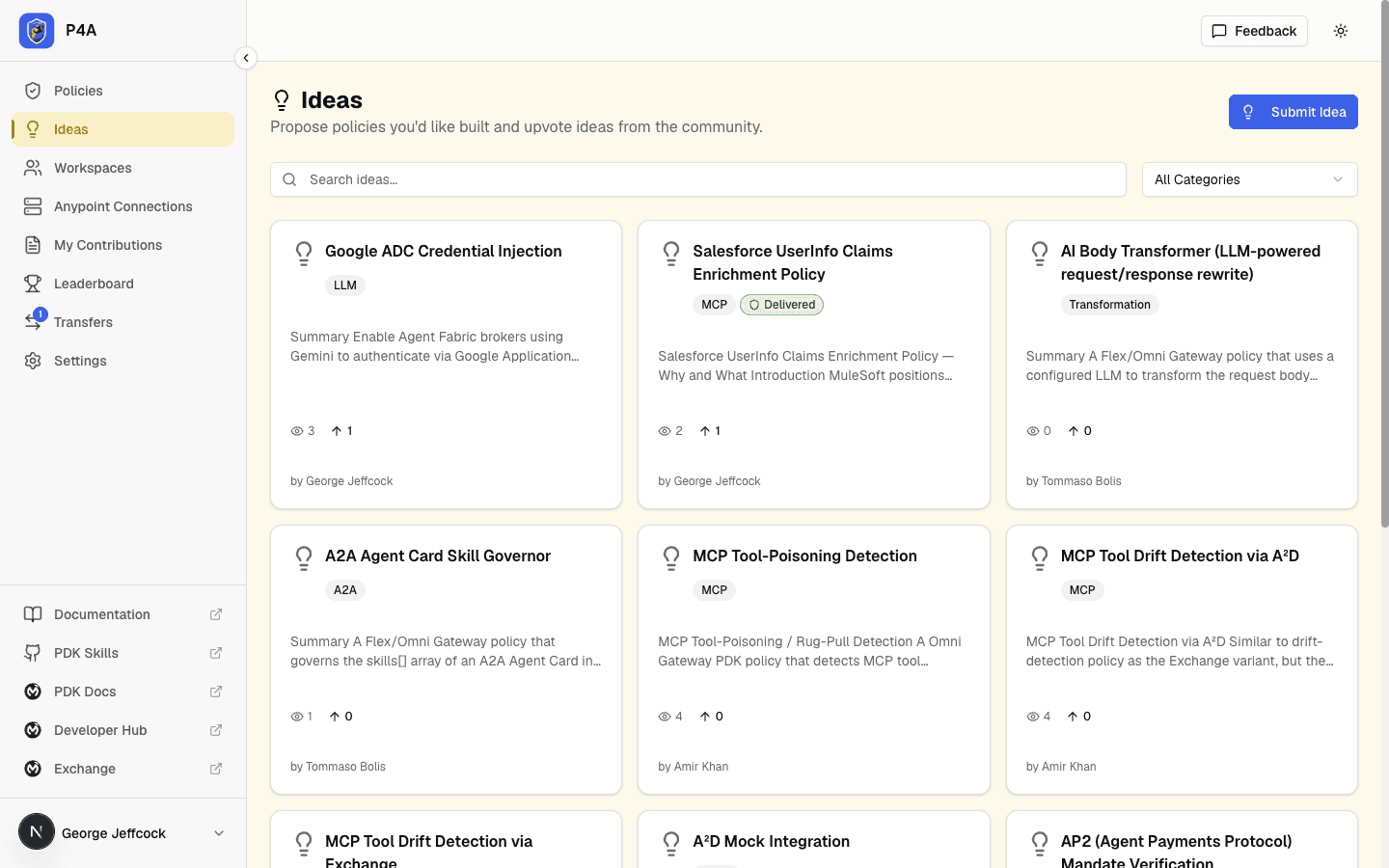
Propose and vote on policies you'd like to see at Ideas (/dashboard/ideas). This is where the community upvotes policy requests and where contributors can find ideas to implement (see Submitting an idea). Filter by category, search, and sort the list alphabetically (the default), by submission date, or by most-voted.
Approved ideas have the same Share button on their detail page, copying a public /i/{title} link (or posting it to LinkedIn or X) so you can rally support for a proposal. As with policies, anyone can open the link to see a read-only preview without signing in.
Each policy's detail page carries a Report an issue action next to View source. It opens a pre-filled bug report on the policy's own GitHub repository — where the author tracks issues — so you can flag a problem without leaving the portal. You add a one-line summary in P4A, then finish and submit the report on GitHub under your own account. The action is hidden for policies whose repository has its issue tracker turned off.
Workspaces
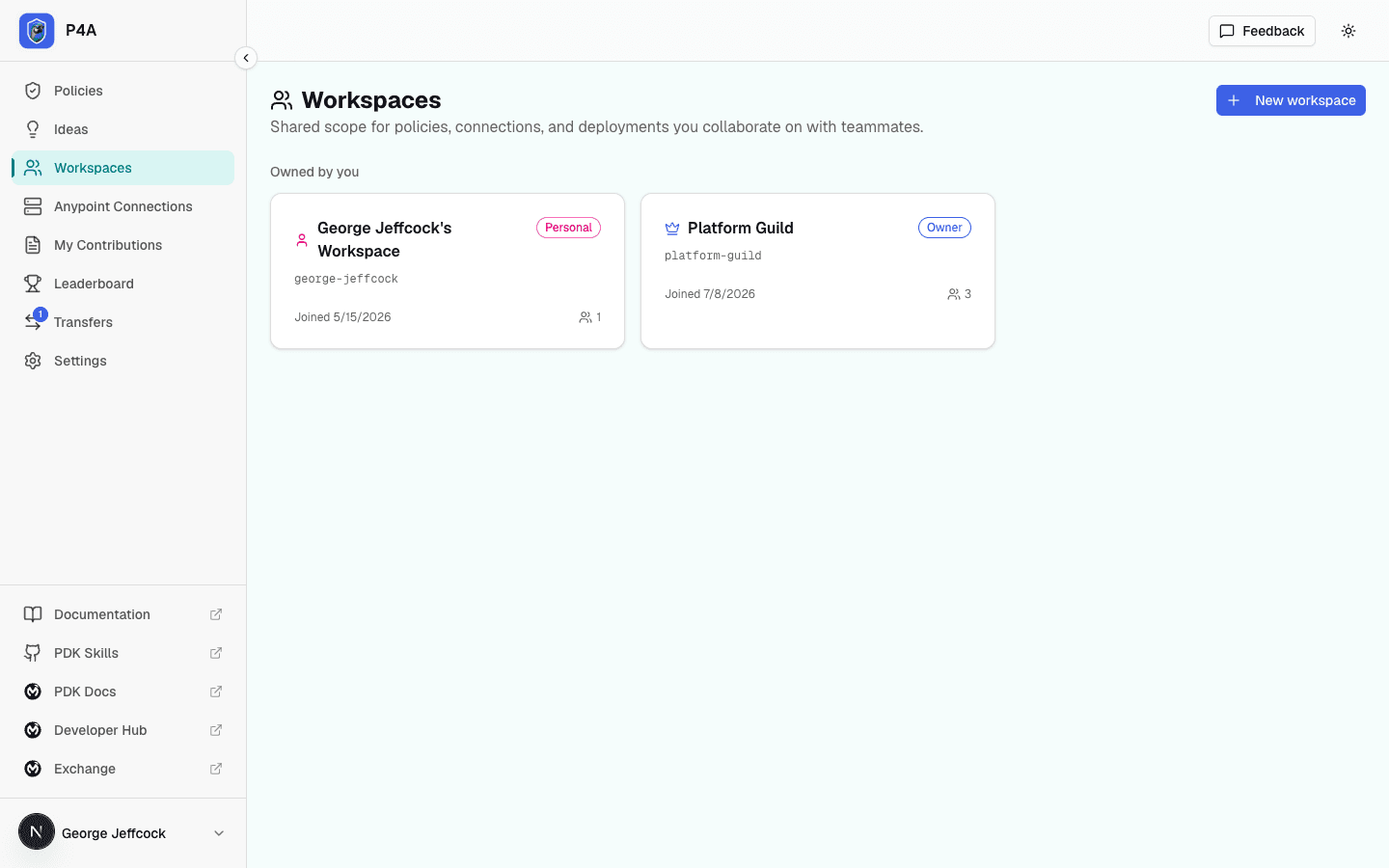
At /dashboard/workspaces, see your personal and shared workspaces, switch the active workspace, and manage members. Every account has a personal workspace by default, and you can also belong to one or more shared workspaces; each membership carries a role — Owner, Admin, or Member — that determines what you can do inside it. For a deeper walkthrough see Using workspaces.
Anypoint Connections
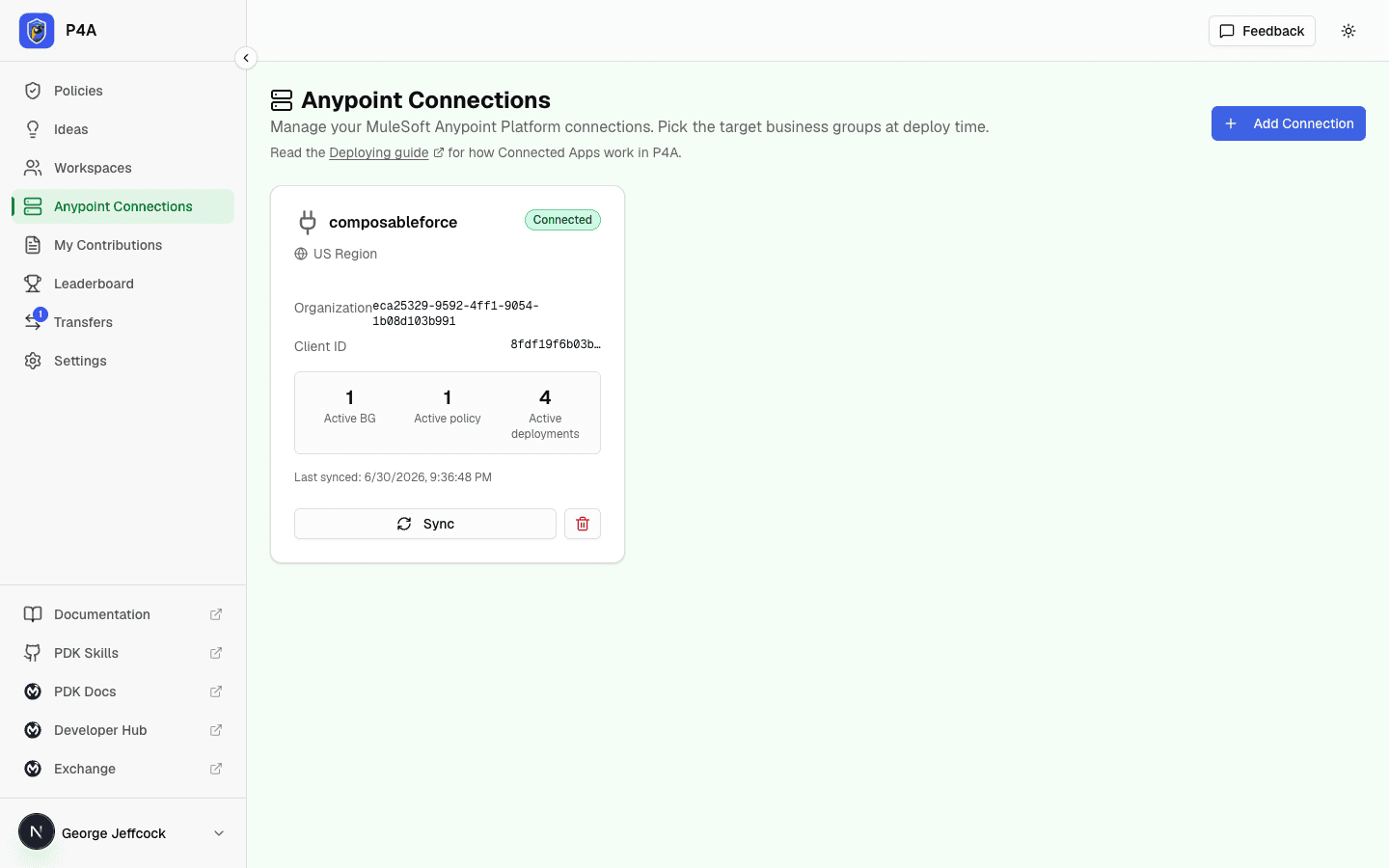
At /dashboard/connections, manage Anypoint Connected App credentials. Each connection belongs to a user and can be linked into a shared workspace so teammates can deploy through it. See Deploying a policy for how connections are used end-to-end.
My Contributions
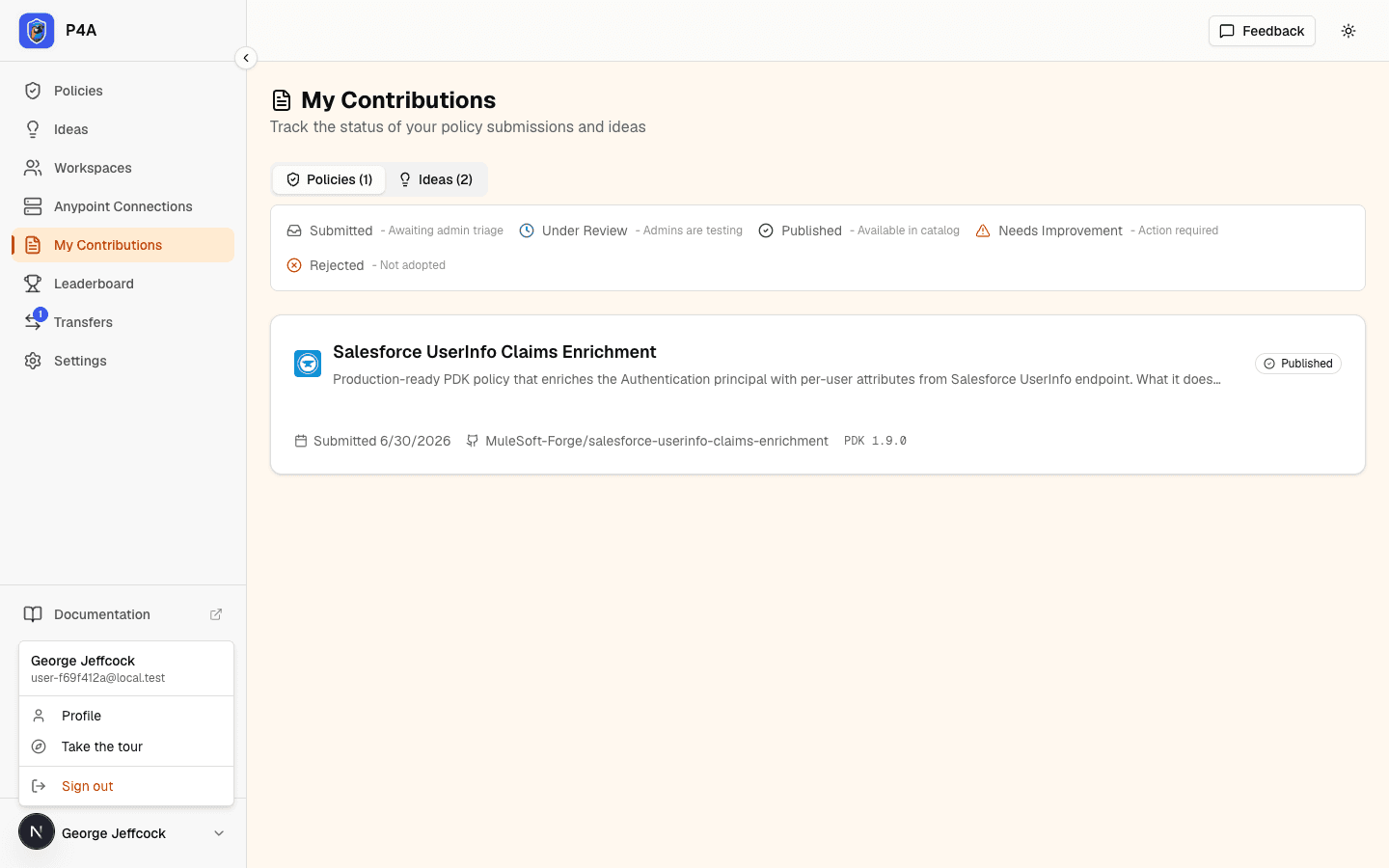
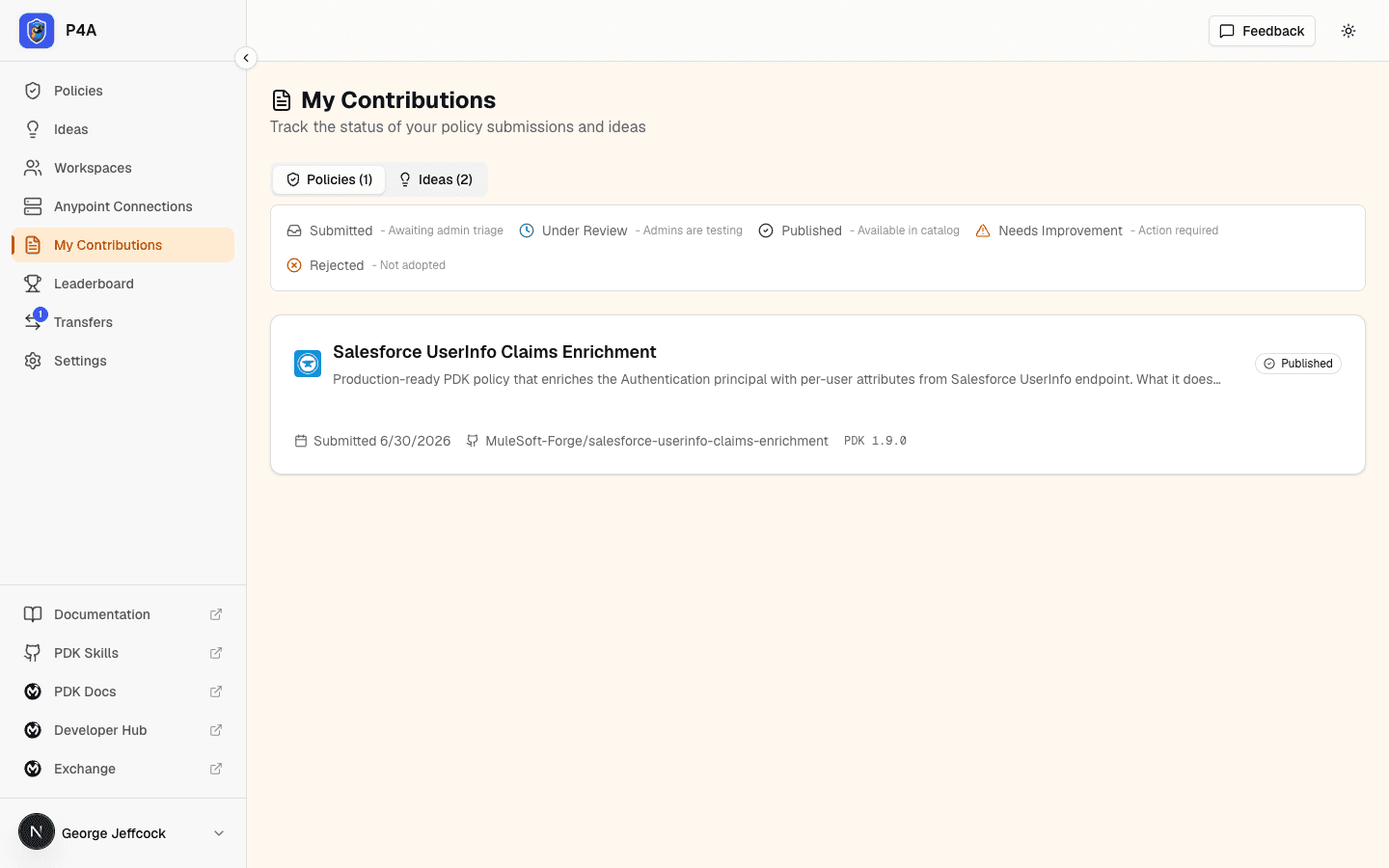
At /dashboard/submissions, track policies and ideas you've submitted, from draft through review to published. Monitor lifecycle state changes and review feedback. See Lifecycle states under Submitting a policy for what each state means.
Transfers
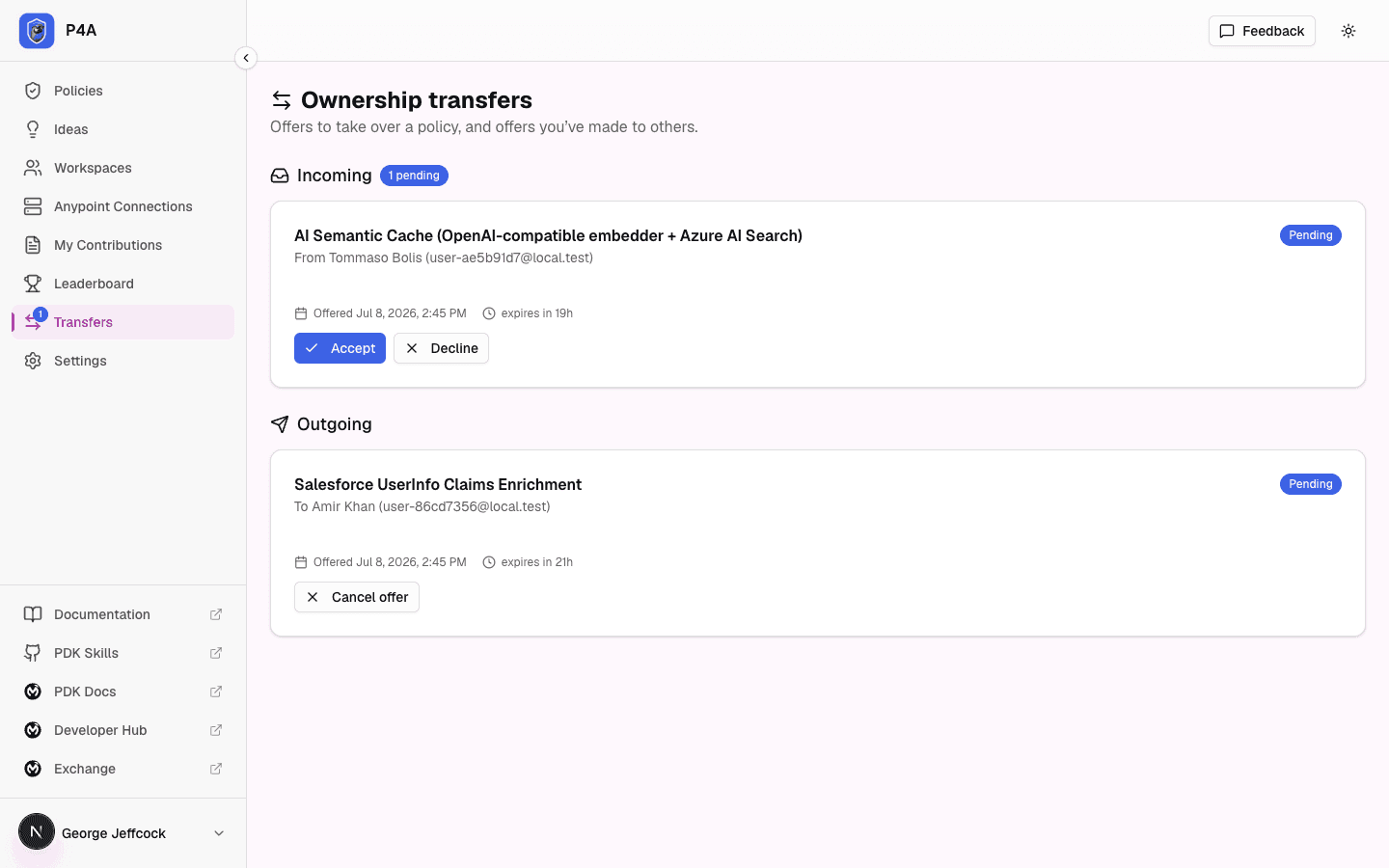
At /dashboard/transfers, review ownership transfers — offers to take over a policy someone else owns, and offers you've made to others. When someone offers you a policy, a count badge appears on the Transfers item in the sidebar. See Transferring policy ownership for the full flow.
Profile
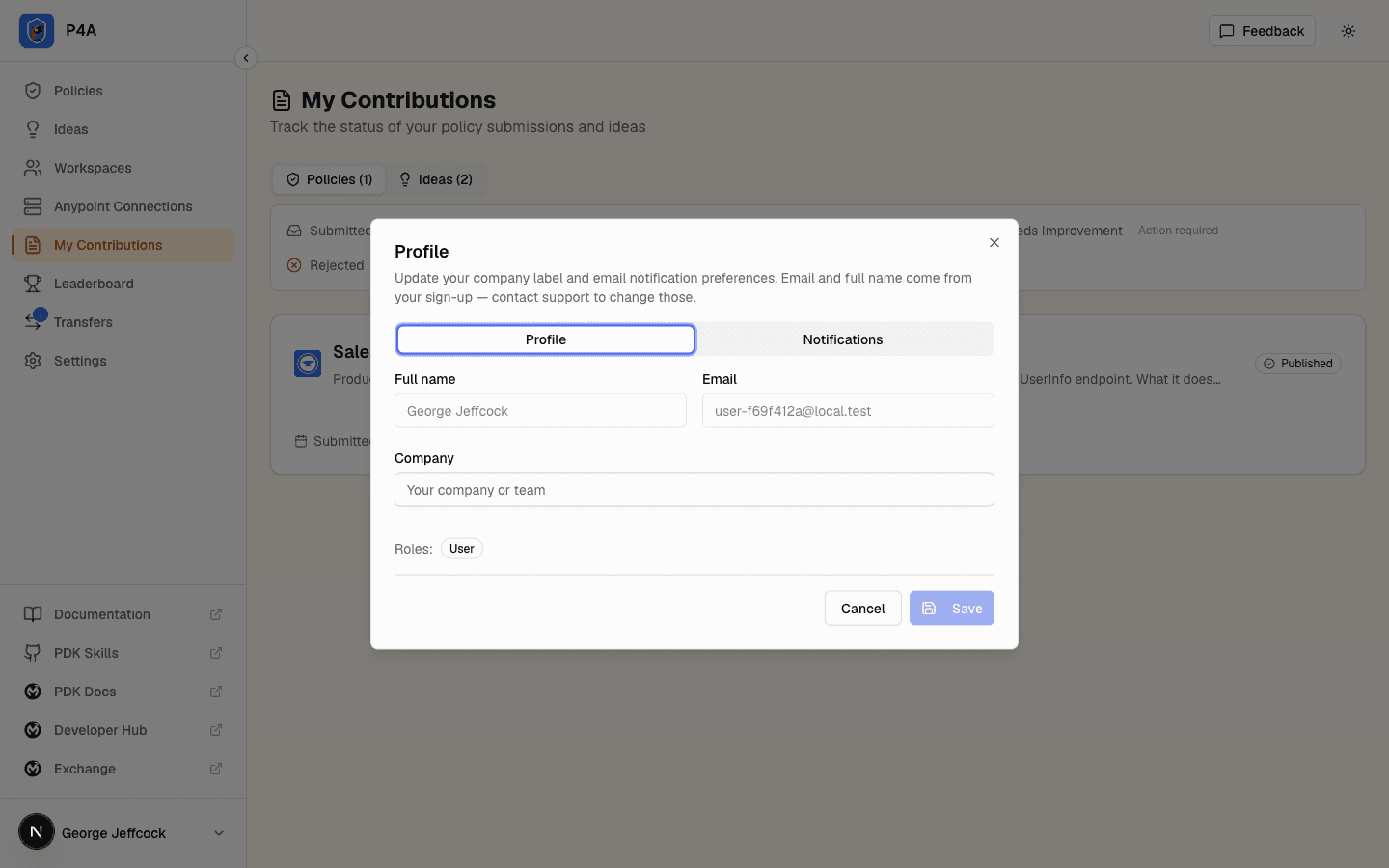
Click the avatar at the bottom-left of the sidebar to open a small menu with Profile and Sign out. Choosing Profile opens a dialog where you can update your company label — the free-text label that appears next to your name on policies and ideas you submit. Full name and email come from your sign-up (provider account for Google / GitHub, registration form for email and password) and aren't editable here — contact support if you need to change them. The Roles field lists any platform roles you've been granted (most users see just User).
Your public profile
The Profile dialog also lets you fill in an optional public profile — a short bio and links to your LinkedIn and X accounts. You can set these when you register, or add them any time from the Profile dialog. They stay private until you turn on Make my profile public: only then do your bio and links appear to other people. Your name, company, and handle are always visible next to the things you contribute; the public toggle governs the extra bio and social links only.
Anywhere your name appears — as a policy owner, an idea author, a leaderboard entry, or a comment author — other signed-in members can click it to open your profile card. The card shows your name and company, your bio and links if you've made your profile public, and lists the policies you've published, the policies you've been credited on as a contributor, the rulesets you've published, the rulesets you've been credited on, and the ideas of yours that have been approved. If you haven't opted in, the card simply shows your name, company, and contributions without the bio or links.
Being credited as a contributor on a published policy also counts toward your standing on the community leaderboard, right alongside the policies and ideas you author — so helping build someone else's policy earns you recognition too. A policy's owner adds contributors from the policy's detail page; see Submitting a policy for how crediting works. Each ruleset you publish counts toward the leaderboard the same way a published policy does, and a contributor credit on a published ruleset counts the same as one on a policy (see Submitting a ruleset).
Your avatar
By default, everywhere your name appears P4A shows a simple chip with your initials. If you'd like a photo instead, turn on Show my avatar — there's nothing to upload. You can flip it on at sign-up (the registration form has a Show my avatar toggle with a live preview) or any time later in the Profile dialog. When it's on, P4A uses the profile photo from the Google or GitHub account you signed in with; if there isn't one, it falls back to your Gravatar (the globally recognized avatar linked to your email address). If neither is available, you simply keep the initials chip. This setting is off until you opt in, and turning it off returns you to initials everywhere.
Notifications
P4A can tell you about the same events on two channels: by email and in the app itself. The in-app channel is the bell in the top-right of the dashboard header — a badge shows how many unread notifications you have, and clicking it opens a list of your most recent ones. Clicking a notification marks it read and takes you to whatever it's about (a submission, an idea, a workspace, a comment thread). Mark all read clears the badge, and View all opens the full inbox at /dashboard/notifications, which pages through your whole history. New notifications arrive in real time — you don't need to refresh.
The Profile dialog has a Notifications tab where you control both channels independently. Each event has an Email toggle and an In app toggle; new users start with everything turned on. Turning a channel off for a category stops only that channel for that category — the other channel and the other categories keep flowing. The available categories are:
- Submission updates — under-review, needs-improvement, rejected, and published notices for your own policy and ruleset submissions.
- Policy idea updates — approved, needs-improvement, and rejected notices for your own ideas.
- Testimonial updates — approved and rejected notices for testimonials you submitted.
- Reviewer invitations — when an admin invites you to review a policy or ruleset currently under review.
- Ownership transfers — when someone offers to transfer a policy, idea or ruleset to you, or when a transfer you started is accepted or declined.
- Workspace membership — when you're added to or removed from a shared workspace, or when your role in it changes.
- Workspace updates — when a shared workspace you belong to is renamed or otherwise updated.
- Comment replies — when someone replies to a comment you posted, or comments on a policy or ruleset you own.
- Mentions — when someone @-mentions you by username in a policy, idea or ruleset comment.
- Deployment outcomes — when a policy or ruleset deployment you triggered finishes publishing, releasing, or fails. In app only; there is no email toggle.
- New submissions (admin) — admin-only alert on every new policy or ruleset submission. Visible only to platform admins.
- New policy ideas (admin) — admin-only alert on every new idea. Visible only to platform admins.
- New testimonials (admin) — admin-only alert on every new testimonial awaiting review. Visible only to platform admins.
Changes take effect on the next event — there is no batching or digest mode. Preference changes are recorded in the platform audit log so admins can trace them.
Signing out
The same avatar menu has a Sign out entry. Choosing it ends your session immediately and returns you to the sign-in page; the next visit to any dashboard URL will redirect you to /login.